

Deltagraph FAQs
'~MathType Fonts' File installed to wrong location
The DeltaGraph 5.5 for Macintosh installer had a problem where a file named "~MathType Fonts" was incorrectly installed to one of the following locations:
/Library/Fonts/ Home/Library/Fonts/
- This can cause several problems including the ones mentioned in these articles:
- Greek characters or symbols not showing up correctly
- Since installing DeltaGraph 5 Word won't print pages that use symbols
The solution is to move the file from the incorrect folder to the DeltaGraph 5/Equation Editor/ folder (the DeltaGraph 5 folder is installed by default to your /Applications folder).
This problem affects the version 5.5 for Macintosh installer and some installers previous to version 5.0.2. Version 5.0.2 was not affected. This will be fixed in all future installers. We apologize for any inconvenience this may have caused.
Advisory: Line Spacing Changes in DeltaGraph 5.6.1 for Windows
Before updating to version 5.6.1 please be aware of the following issue:
In version 5.6.1 we fixed some long-standing issues relating to line spacing in user-created text objects (this does not affect chart text). There were a couple of problems.
1) 3 pixels of extra leading was added to all newly created text objects. This caused lines to be spaced incorrectly. For example, using the default font size of 9 with single spacing, the line height should be 12 pixels. In previous versions, the line height was actually set to 15 pixels because of the extra 3 leading pixels.
2) Leading was being added to the first line as well as subsequent lines. This caused dead space at the start of all text objects.
These problems are illustrated in Figure 1:
Figure 1
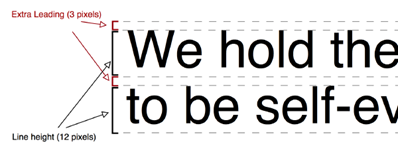
We have addressed these problems. The fix for problem #2 has a side effect that you need to be aware of. As we have eliminated the leading for the first line, text objects created in previous versions of DeltaGraph will appear to have shifted upwards by 3 pixels due to the missing dead space. See Figure 2 (note the missing leading compared to Figure 1. Note that the excess leading between subsequent lines will still be there unless you manually change the spacing and then edit the object to force it to be rebuilt.
Figure 2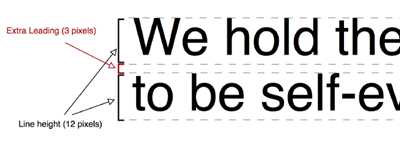
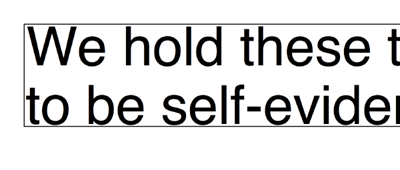
The result will look something like this:
Before:
After: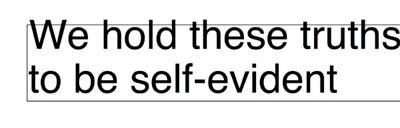
As this will affect all text objects opened in 5.6.1, this is a potentially serious issue. You may need to adjust all of your text objects to return them to the desired position after opening them in 5.6.1. If you are not prepared to do this, DO NOT UPDATE TO VERSION 5.6.1 or later updates/upgrades as they become available.
Figure 3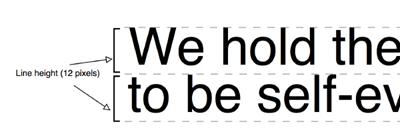
If you want your existing text objects to be truly single-spaced without the extra leading you will need to select them, then go to the Format menu, choose Text, choose the Spacing tab, and change the spacing to Single and click Apply and then OK (it's important that you hit Apply before you click OK).
After installing a version 5.x patch I get a message stating that my serial number or license code is invalid. I know it's a good code and it was working before I installed the patch. What happened?
We haven't been able to recreate this internally but it appears that this is the result of a problem in the registry. The followig procedure seems to fix the problem:
1) Uninstall DeltaGraph
2) Re-install from your CD
3) Re-apply the patch.
Cursor appears in the wrong place and text appears to move and disappear when zoom/scale not set to 100%
There is a known problem in DeltaGraph 5.5 and higher when editing text objects when the zoom (View->Scale) is set to something other than 100%. The problem is especially apparent when styled text is present. The cursor will appear to be in a spot other than where you are actually editing and text will disappear or move. Our developers are aware of the problem.
The workaround is to always edit text at 100% zoom (scale).
I am attempting to launch DeltaGraph 5.0 for Windows on a Windows 2000 or XP operating system, but I am encountering the following alert: Failed to update system registry. Please try using REGEDIT. When I click OK, the application launches successfully. However, a local administrator account can launch the software without encountering this alert. What is the problem?
The above alert is innocuous. If you wish to suppress the alert at startup, you need to grant the user account/group Full Control permission to the following keys in the Windows registry: WARNING: Please be aware that you use the Registry Editor at your own risk. If you use the Registry Editor incorrectly, you may cause serious problems that may require you to reinstall your operating system. Please make sure you have a current system boot disk before following these steps.
Windows 2000 Instructions:
1. Log on as a local Administrator.
2. Go to Start->Run and type regedt32.
3. Navigate to HKEY_CLASSES_ROOT\DG5.Document
4. While the key is highlighted, select the Security menu and choose Permissions.
5. Uncheck the "Allow inheritable permissions from parent to propagate to this object" box. Select Copy. Check the "Full Control" box for the appropriate user account/group. Click the Advanced button and select "Reset permissions on all child objects and enable propagation of inheritable permissions". Click OK to accept the changes. >
6. Next we need to change the CLSID permissions for DeltaGraph. There are two keys you may need to change:
HKEY_CLASSES_ROOT\DG5.Document\CLSID\{DBB164F5-5B7D-11D2-A416-00A024A82786}.
and HKEY_CLASSES_ROOT\CLSID\{DBB164F5-5B7D-11D2-A416-00A024A82786}
7. While the CLSID key is highlighted, select Security and choose Permissions.
8. Repeat Step 5.
9. Exit the Registry Editor.
Windows XP Instructions:
1. Log on as a local Administrator.
2. Go to Start->Run and type regedit.
3. Navigate to Navigate to HKEY_CLASSES_ROOT\DG5.Document.
4. While the key is highlighted, select the Edit menu and choose Permissions.
5 Check the "Full Control" box for the appropriate user account/group and click OK.
6. There are two keys you may need to change:
HKEY_CLASSES_ROOT\DG5.Document\CLSID\{DBB164F5-5B7D-11D2-A416-00A024A82786}.
and HKEY_CLASSES_ROOT\CLSID\{DBB164F5-5B7D-11D2-A416-00A024A82786}
7. While the CLSID key is highlighted, select Edit and choose Permissions.
5 Check the "Full Control" box for the appropriate user account/group and click OK.
9. Exit the Registry Editor.
I am using DeltaGraph 5.0.1. When I print I notice there are three blank pages printed along with the one I wanted.
First of all go to the Format menu and choose "Canvas Size". Make sure that only one square is selected. Click OK. If this doesn't fix the problem then you may be experiencing the results of a bug. Version 5.4 includes a fix for this problem. The issue is that the Printer Page size and the Document size are not matching. Please download the 5.4 patch and try the following after installing the patch and running the new version:
1) Choose "Document Setup" from the File menu
2)Select "Printer Page" and click OK.
The Canvas size should now match the printer page size. If you still have trouble with this please contact us at support@redrocksw.com.
I have DeltaGraph 5 for Macintosh but I work with somebody who has DeltaGraph 5 for Windows. He can't seem to open my files and vice-versa.
DeltaGraph 5.6 restores file compatibility between Mac and Windows versions of DeltaGraph. DeltaGraph 5.6 for Macintosh and DeltaGraph 5.6 for Windows are able to read each other's files and translate them into the correct format based on content. To make this process run smoothly we would recommend that any files intended to be shared across platforms be given a .dg5 extension. When these files are opened in DeltaGraph 5.6 for Macintosh, you will see the following alert:
"This DeltaGraph for Windows 5.x file has been converted to the Macintosh format. Since not all DeltaGraph data is compatible with both the Macintosh and Windows platforms, some data may have been lost of modified.
- Pantone colors: Cannot currently be converted accurately for Macintosh
- OLE objects: Cannot currently be converted and used on Macintosh
- Fonts: Some fonts used on Windows may not be available on this computer; substitutions will be made.
- Slide Sorter: Does not exist in DeltaGraph for Windows v5.x. One has been created for you."
- Outliner: Does not exist in DeltaGraph for Windows v5.x. One has been created for you.
To save the file at this point you must use File->Save As. This was done to avoid accidentally replacing the source DeltaGraph for Windows file and possible lose data.
DeltaGraph updates can be downloaded here:
http://support.redrocksw.com/downloads
If you experience problems sharing files between DeltaGraph 5.6 for Macintosh and DeltaGraph 5.6 for Windows, please open a technical support case here:
https://secure.redrocksw.com/techsupport
I have DeltaGraph 5 for Windows but I work with somebody who has DeltaGraph 5 for Macintosh. He can't seem to open my files and vice-versa.
DeltaGraph 5.6 restores file compatibility between Mac and Windows versions of DeltaGraph. DeltaGraph 5.6 for Macintosh and DeltaGraph 5.6 for Windows are able to read each other's files and translate them into the correct format based on content. To make this process run smoothly we would recommend that any files intended to be shared across platforms be given a .dg5 extension. When these files are opened in DeltaGraph 5.6 for Macintosh, you will see the following alert:
"This DeltaGraph for Windows 5.x file has been converted to the Macintosh format. Since not all DeltaGraph data is compatible with both the Macintosh and Windows platforms, some data may have been lost of modified.
- Pantone colors: Cannot currently be converted accurately for Macintosh
- OLE objects: Cannot currently be converted and used on Macintosh
- Fonts: Some fonts used on Windows may not be available on this computer; substitutions will be made.
- Slide Sorter: Does not exist in DeltaGraph for Windows v5.x. One has been created for you."
- Outliner: Does not exist in DeltaGraph for Windows v5.x. One has been created for you.
To save the file at this point you must use File->Save As. This was done to avoid accidentally replacing the source DeltaGraph for Windows file and possible lose data.
DeltaGraph updates can be downloaded here:
http://support.redrocksw.com/downloads
If you experience problems sharing files between DeltaGraph 5.6 for Macintosh and DeltaGraph 5.6 for Windows, please open a technical support case here:
https://secure.redrocksw.com/techsupport
I just purchased a version 4.5 to 5.x upgrade for DeltaGraph for Macintosh. It gives me the option to enter my 4.5 Serial Number but after I do so it tells me it's invalid.
First of all, make sure that you aren't copy and pasting the Serial Number into the field. You will need to type the number in manually and please be sure that you have entered it correctly. If it still doesn't accept the number then you may have to install version 4.5 on your computer, run it and enter the serial number, and try the installation again. This time tell the installer to look for an existing 4.5 installation rather than to prompt you for the serial number. The installation should work at this point.
If you have trouble getting 4.5 to install please see the following articles:
- http://support.redrocksw.com/dgknowledge/question.php?qstId=166
- http://support.redrocksw.com/dgknowledge/question.php?qstId=2
This problem seems to affect a small number of Mac OS X v.10.3.x users. Our developers are aware of the problem. We apologize for the inconvenience. Feel free to contact us if none of the above suggestions helps.
I used to be able to set grey scale with patterns as the default for new series. In DeltaGraph 5 this option doesn't seem to be available. How can I accomplish this?
If you want to change it permanently you need to alter your stationery file. This can be accomplised by following the steps below:
1) Open DeltaGraph.
2) Go to DeltaGraph 5->Preferences, Chart tab. Click the radio button labeled "Colors and patterns", click OK.
3) Go to Edit->Colors. Change the colors for the data series to black or grey, click OK.
4) Save your blank DeltaGraph file.
5) Quit DeltaGraph.
6) In your DeltaGraph 5 folder select the file "DG Stationery" and change its name to something else (eg. DG Stationary Colors).
7) Select the file you just saved and rename it "DG Stationery". Do a "Get Info" (command-i) on the file and check the checkbox that says "Stationery Pad". Close the dialog and move the file into your DeltaGraph 5 folder.
The next time you launch DeltaGraph and create a chart it should show up in the greyscale colors you specified and all series should have a pattern assigned. DeltaGraph looks for a stationery file named "DG Stationery" when it starts up. If you want to go back to using colors, simply change the name for the black and white file to something different and rename the Color file "DG Stationery".
If you only want to use grey scale with patterns on some charts then you might consider simply creating a chart template or just a custom Color Scheme for grey scale. See chapters 15 and 10 in the User's Guide for instructions.
NOTE: The stationery file may be overwritten when you install updates. If you follow the stationery replacement procedure above make sure to move it or back it up before installing any updates.
I'm trying to install the 5.4, 54.1, or 5.6 update for DeltaGraph for Windows. It goes for a while but then I get the following error: "To use this updater you must have DG 5.0(5.0.1) installed". I have DeltaGraph 5 installed so I'm not sure what the problem is.
This error can be caused by problems in your current installation files. To fix this please follow the following steps:
1) Uninstall your current installation of DeltaGraph. Please note that if you uninstall DeltaGraph, you will have to enter your Serial Number and License Code when you reinstall it. Please make sure you have these pieces of information before uninstalling.
2) Reinstall DeltaGraph from your installation CD
3) Run the 5.4 updater again
I'm trying to open some old DeltaGraph files from either DeltaGraph 4 or earlier for windows or DeltaGraph for Mac in DeltaGraph 5 for Mac but it won't recognize them. What can I do?
There are two problems that can cause this. First, the extension used by your file may not be something that DeltaGraph 5 for Macintosh can recognize. Changing the extension to .dgp or .dg4 should let DeltaGraph recognize it.
If the files you need to open are from DeltaGraph 5 for Windows, please update your version of DeltaGraph for Macintosh to 5.6 or later. File compatibility with version 5 for Windows was restored in that version.
Scaling gets changed when saving 5.0.1 files in 5.4
This problem appears to have been resolved in version 5.4.1. You can get the update here:
http://support.redrocksw.com/downloads
If you have problems or questions related to this issue please open a technical support case:
https://secure.redrocksw.com/techsupport
Since installing DeltaGraph 5 on my MacOS X computer I've had trouble printing documents from Word. I export chart images to Word and print but Word refuses to print any pages that use symbols. What's going on?
We aren't sure why this is happening but it seems to revolve around the ~MathType Fonts. In early versions of DeltaGraph 5 (5.0.1a and earlier) the installer put this font in your Fonts folder. This apparently causes a conflict either within Word or within the OS X printing engine which results in the printing problems mentioned above. The solution is to move the ~MathType Fonts from your Fonts folder to the DeltaGraph 5/Equation Editor folder.
This problem will not occur if you have only used the DeltaGraph 5.0.2 (or later) installer.
Since installing or updating to DeltaGraph 5.5 I am experiencing a problem where Greek symbols (or any symbols from the Symbol font) are showing up as empty boxes or they won't print.
There was a problem in the 5.5 installer and updater where the "~MathType Fonts" file was incorrectly put in the Fonts folders. This can cause the problem you describe. The solution is to move the file "~MathType Fonts" from either of the following directories where it appears:
/Library/Fonts/Home/Library/Fonts/ to the DeltaGraph 5/Equation Editor folder.
This problem has been resolved for future updates.
Another possible cause of this type of problem is a font conflict or a bad fonts file. Check your system for duplicate "~MathType Fonts" files or other Symbol font files. Try removing them or temporarily moving them to somewhere they won't get used by the system and then reboot.
Since updating to DeltaGraph 5.4 for Windows I'm seeing a bright yellow background printed with my chart pages and other colors are printed wrong too. This only happens when I print to my HP printer. Other printers work ok.
This problem was fixed in version 5.4.1. You can download the latest update here:
http://support.redrocksw.com/downloads/
Using DeltaGraph 5.0 or 5.0.1 for Windows I'm seeing a problem where the data sheet window disappears and I can't seem to get it back. What can I do?
This was a known bug in those versions of DeltaGraph for Windows. This has been fixed for version 5.4 (a free update) which can be downloaded here:
http://support.redrocksw.com/updates/win
We just installed DeltaGraph 5.0.1 on a Windows machine. The user who installed DeltaGraph has administrative rights and can use DeltaGraph. Users who do not have admin priviledges, however, are unable to run DeltaGraph. They get a message stating that the License Code is invalid.
This is a known issue in this version. It will be fixed in a future patch. The workaround is to have the admin user use regedit (Windows XP) or regedit32 (previous versions of Windows) to change the permissions for the following registry keys:
HKEY_LOCAL_MACHINE\SOFTWARE\Classes\DG5.Document
HKEY_CLASSES_ROOT\DG5.Document
For later 5.x versions the HKEY_LOCAL_MACHINE registry location has changed to:
HKEY_LOCAL_MACHINE\SOFTWARE\Red Rock Software\DeltaGraph 5\
Change the permissions such that any users who need to access DeltaGraph have access to these keys. Some instructions for using these programs can be found in the article linked below. If you have additional questions please contact us at dgsupport@redrocksw.com.
Note: The trivial problem referred to by the following article may remain:
http://support.redrocksw.com/dgknowledge/question.php?qstId=183
If none of the above instructions solve the problem, you might try giving the user "Power User" priviledges. This has been successful in some situations where other suggestions have failed.
When I copy and paste a chart from DeltaGraph 5 to Microsoft Word, PowerPoint, or Excel and print it, the chart is upside down and backwards. The same happens if I use an exported PICT image. What's wrong?
This appears to be a problem with the way Word handles Postscript information. There are 2 possible solutions for this problem. The best solution is to update to 5.0.2 (if you haven't already done so) and then follow these instructions:
1) In DeltaGraph choose Preferences from the DeltaGraph 5 menu
2) Go to the Export/Import tab
3) Check the checkbox that says "Flip image"
This should correct the problem you are seeing in MS Office.
5.0.2 is a free update for DeltaGraph 5 users and can be downloaded here:
http://support.redrocksw.com/updates/mac/
The other option is simply to disable Postscript embedding. This solution will work with versions previous to 5.0.2 (including 4.5):
1) In DeltaGraph choose Preferences from the DeltaGraph 5 menu
2) Go to the Export/Import tab
3) Uncheck the checkbox labeled "Embed Postscript in PICTs"
4) Click the OK button
This should solve the problem.
When I export an EPSF file with PostScript, import it into MS Office, and print it out some of the fonts get changed. For example, the symbols get converted to letters.
This seems to be caused by the printer not downloading the correct fonts for the file. This is a general issue in MacOS X when Postscript is involved. For the symbols issue there are two easy solutions to this problem that have been effective for other users:
1) Use built-in symbols rather than the DeltaSymbol font. Built in symbols are graphic images and don't rely on any font.
2) Use custom symbols from your library using the Custom option in the Symbols dialog. Any graphic item in your library can be used.
For the general font issue there is no perfect solution as it stands. There are a couple of different workarounds: 1) From Word or PowerPoint, do File->Print and then choose Print to PDF or Preview. This will create a PDF version of the current document. You can then print the resulting PDF document and the fonts should be maintained. 2) Use a high resolution resolution TIFF, PNG, or JPG image instead of EPS or PICT (or copy/paste). The export resolution is set in your DeltaGraph 5->Preferences in the Export/Import tab. We recommend at least 300 ppi. DeltaGraph 5.5 or later is recommended for best export quality. You can download the latest update here:
http://support.redrocksw.com/downloads/
When I try to print to a Canon printer using DeltaGraph 5.6 or 5.5.2, it immediately crashes. If I make a different printer my default, it works ok. This didn't seem to happen in previous versions. What happened?
This has been reported with the following Canon printers so far and likely affects others:
- Canon PIXMA iP4000 (PIXUS iP4100 in Japan)
- Cannon Pixma iP6000D
- Canon i860
We have fixed this problem internally and will be including the fix in the 5.6.1 update. You can download updates here: http://support.redrocksw.com/updates/mac/
When trying to install DeltaGraph 5 for Windows I get the following error message: "Component transfer error" "Component: Office Integration Excel" "File Group: Office Integration-Cleaner-Excel" "File: Microsoft Office\OFFICE 11\;C:\" "Error: The file name, directory name or volume label syntax is incorrect" What's wrong?
This problem was fixed for the 5.6 installer. If you are experiencing this problem please contact us at support@redrocksw.com and we will make the newer installer available to you.
The other option is to do a custom installation (choose the "Custom" option rather than "Recommended" or "Standard") and remove the Office Integration components from the list. This will not prevent you from pasting charts into MS Office.
Another component transfer error regarding color profiles is discussed here: http://support.redrocksw.com/dgknowledge/question.php?qstId=120
