

Signals ChemDraw FAQs
After installing CambridgeSoft v.12 product (especially Desktop SQL applications on Windows XP SP2), the machine reboots endlessly. What can I do to fix this problem?
This problem occurs when ‘Client/Server Run-Time Subsystem” (csrss.exe - responsible for console windows, creating and/or deleting threads) is loading an .exe file or a .dll file that contains a manifest that has Windows Vista extensions leads its internal memory corruption (when it finds a single tag that has two schema properties). The memory corruption causes an access violation in csrss.exe. This causes Windows to restart.
End-users can resolve this by obtaining the hotfix from Microsoft at.
http://support.microsoft.com/kb/921337/en-us
After typing the serial number for my ChemDraw product in the serial number field, the Activation screen indicates "incomplete serial number", and consequently, the Activate buttons are grayed out.
If you have purchased some version of ChemDraw, you may have typed the Macintosh serial number from the ReadMe First card. The Windows serial number is located on the side of the box on a sticker as well as on the packing slip.
During the installation of SQL Server 2005 (express edition) on Windows XP SP3, I receive the following error message. What can I do to fix this problem? “The Windows Installer service cannot update the system file C:\WINDOWS\system32\msxml6r.dll because the file is protected by Windows. You may need to update your operating system for this program to work correctly.”
When you install an English version of SQL Server 2005 (or SQL Server 2008) on a localized version of Windows XP with Service Pack 3 which is not English version, you will get this error message. Just click OK button the setup wizard resumes and the setup will succeed. For further reference
http://support.microsoft.com/kb/958897
During the installation, I get a 1935 error.
This error has to do with the Microsoft .NET Framework. Microsoft has many tech notes on this issue. Try the following first:
http://support.microsoft.com/default.aspx?scid=kb;en-us;308096
If that does not help, try:
http://blogs.msdn.com/astebner/archive/2004/11/10/255346.aspx
If this does not help, try deleting the contents of your %TEMP% folder. In other words, open up C:\Documents and Settings\your_username\Local Settings\Temp\ and delete the contents. Now retest our installer.
If this does not help, the next step is to try installing a newer version of MSXML, restarting the computer, and then retrying our installer:
http://www.microsoft.com/downloads/details.aspx?FamilyID=3144b72b-b4f2-46da-b4b6-c5d7485f2b42&DisplayLang=en
During the installation, I get an error that the serial number or registration code is invalid.
If you are only putting in a serial number and not the registration code, then you would see this error. Both codes can be found on the ReadMe First card that came in the box. You must enter each in the corresponding fields during the installation.
During the installation, I receive the following error message: "1607: Unable to install InstallShield Scripting Runtime".
This is an InstallShield problem. We use InstallShield to install our software. The following tech note on InstallShield's web site should fix the problem:
http://consumer.installshield.com/kb.asp?id=Q108158
If for some reason this does not work, then there is another tech note on InstallShield's web site that might help:
http://support.installshield.com/kb/view.asp?articleid=Q107094
particularly the new IsScript.msi download on this page which corrects an ALLUSERS issue.
How do I activate BioDraw (PathWorks)?
When you first launch the program, you will see a licensing and registration dialog box.
Copy and paste the "Host Name" and the "Machine ID" from this registration dialog box into an email addressed to Hearne We will reply with your license key that you will paste into the license key field and then click on the Start PathWorks button.
How do I activate my software?
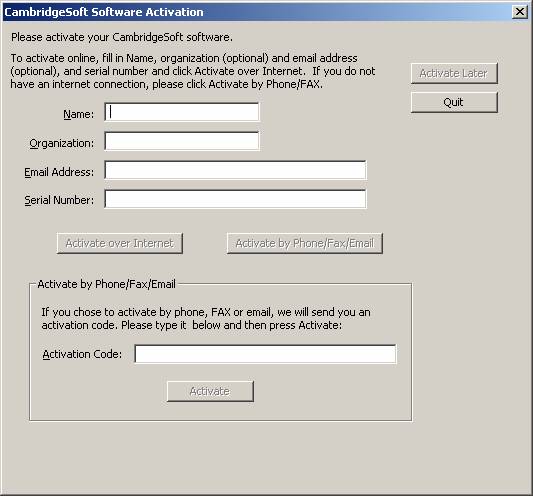 Once you fill in your name and a valid serial number, the “Activate Later”, “Activate over the Internet” and “Activate by Phone/Fax/Email” buttons will go from grayed out to active. If for some reason, you choose not to Activate now, you can choose the Activate Later button and the installation will continue. However, each time you launch one of the programs installed, you will see this prompt, which means entering your name and serial number each time.
If you are connected to the Internet, and have no firewalls running, you can choose the “Activate over Internet” button. If you have any problems with Activate over Internet, use the Activate by Phone/Fax/Email instead.
Clicking on Activate by Phone/Fax/Email will cause a web page to appear that looks like:
Please note that if you have Windows XP SP2 installed, the buttons on this page will not work until you click on the new Internet Explorer Information bar and choose “Allow Blocked Content”:
Activate Online is really the same as the “Activate over Internet” button on the previous screen. You can try it again, but most likely you will need to use either the “Activate by Email” or “Activate by Phone/Fax” button. If you are connected to the Internet, but are having problems using the “Online” option, use the “Activate by Email” button. Clicking the “Email” button will open up a web page that directs you to email the contents of the page to activate@cambridgesoft.com after filling in any blank fields:
Please be sure to include all of the information in the page above from “Serial Number” down to “Email Address” in the email you send to the “activate” address. Your information will be processed, and a return email will be sent to you that includes your Activation Code.
The form is very similar for the “Phone/Fax” option:
Fill in the information requested on this form. Print out the form, and then either call the number listed on this page or fax it to the fax listed. Once the information is processed, and email will be sent to the address you provided with your Activation Code. Once you receive your Activation Code, you will go back to the first screen and type your Activation code in the space provided and then click on the “Activate” button just underneath the field where you typed the Activation code. Once activated, the installation will continue.
How many activations do I get?
You can activate the software 3 times for each license. After that, you will need to contact Hearne and provide a good reason for requesting more activations. Once we receive your request, we will examine your activation history, and your reason for more activations and decide if you are eligible for an increase in activations. As long as you are adhering to the license agreement, increasing your activations should not be an issue.
I am being prompted for codes, but the registration code I have does not fit in the space provided or I get a message stating that the codes are not correct.
First, you should only be prompted for codes during the installation of the software, not when launching. If you are being prompted for codes when launching, then there was a problem with the installation. Try uninstalling and reinstalling our software. Make sure you install and launch with sufficient access privileges.
If the reg code does not fit or you get an error that they do not match during the installation, then most likely you are using codes not appopriate for the installer. Check to make sure that the cd-rom label matches the the description and version for the codes you have. The sticker the codes came on should indicate the product and version.
I have downloaded the installer from your site, but now I am having trouble installing. For example, when I try to run the installer, I get an error message indicating that the installer isn't a valid WIN32 application.
Most likely, there was a problem with the download. Return to the page where you downloaded the software, and try the "Alternate" download location provided on that page.
I have MacOS 10.2. When I try to install ChemOffice or ChemDraw 7, I get a message that the installation requires a system folder and the installation quits without installing.
Version 7 was developed before MacOS 10.2. This problem occurs if Classic mode has never been launched.
To work around the problem:
1. Go to System Preferences and choose Classic from options
2. Select a system folder for the Classic mode and choose Start
NOTE: This updates some 9.x files
3. Retest our installer.
I installed ChemDraw Ultra 6.0, but when I launch, ChemDraw, Chem3D and ChemFinder, it asks me for the codes. The codes only work with ChemDraw and not with Chem3D and ChemFinder.
You should never be prompted for codes when launching an application. You should only be prompted for the codes during the installation. The codes are only meant to work at installation of the ChemDraw Ultra suite. The Chem3D and ChemFinder applications that come with ChemDraw Ultra are version 5.0, where the ChemDraw application is 6.0. The codes are 6.0 codes, so they will only work with ChemDraw at start up. Try uninstalling the software using the Add/Remove Programs control panel, make sure you are logged on as an Administrator to the machine, then reinstall the software and retest the applications while logged on as Administrator.
I installed the Trial version. I just purchased the full version. I installed the software, but I get a message that the software is or will expire.
You need to uninstall the trial. Open the Windows Add/Remove Programs control panel to uninstall the ChemOffice trial. Now install the version you purchased making sure to use the codes you received with your purchase.
I just downloaded the software, but when I try to run the installer I downloaded, I get an error stating "This is not a valid Win32 application."
This error indicates that there was a problem with the download. Delete the file you downloaded, go back to the web site and try to download the file using the "Alternate" location link on the page. If you are trying to download our demo, you can always request the trial on DVD:
https://accounts.cambridgesoft.com/login.cfm?serviceid=3
I lost my serial number and/or registration code for a product that came on cd-rom/DVD
Contact Hearne, but please know that there is no guarantee that we will be able to locate your order. Please provide the application, version, and operating system, as well as any names, organizations, PO's and serial numbers you may have so that we can try to search for the order in question.
For 9.0 or higher products, please note that the serial number is normally found in one of a few places:
- On a sticker on the box that the software came in.
- On the packing slip that came with the box.
- In the email that was sent when you purchased the product (assuming you provided us with your email address).
For 8.0 or lower products, please note that the serial number is normally found in one of a few places:
- On a sticker on the side of the box that the software came in. On the ReadMe First card (or product registration card) that came with the software.
- If the software is still installed somewhere, the splash screen that appears when you launch the product usually indicates the serial number or on Windows go to the Help menu and choose the About option - the splash screen that appears will provide the serial number - on the Mac choose the About option from the Apple menu while the product is active.
- Providing us with the serial number will increase the chances of determining the corresponding registration code. If you cannot find the serial number, please be sure to provide us with as many details as possible about the product and order.
Please note that if you are looking for the serial number AND registration code for software that you received with a chemistry text book that you purchased through a school store, and you did not register your purchase with us, it will not be possible to locate your specific codes. If you don't even have the serial number in this scenario, your best bet is to see if your bookstore will allow you to exchange the book and software for another copy.
I need to be able to create customized labels for R-Groups for analysis in Excel.
There is a way for you to add more structures that can be recognized by the Excel Add-in during an R-Group Analysis. Basically, you need to create the corresponding structures in the Nicknames folder.
In Windows XP, this folder is located by default under:
C:\Documents and Settings\All Users\Application Data\CambridgeSoft\ChemOffice2010\ChemDraw\ChemDraw Items\Nicknames
If you have Windows Vista or 7, the ChemDraw nicknames structures folder is under:
C:\ProgramData\CambridgeSoft\ChemOffice2010\ChemDraw\ChemDraw Items\Nicknames
You can use existing .cdxml files on that folder as a starting point (i.e.: Phenyl.cdxml) to add more structures that can be recognized by the Excel Add-in during an R-Group Analysis.
I purchased a chemistry book that came with your software, but I lost the installation codes.
Fax the sales receipt from the bookstore that shows proof of purchase to 617-588-9360 and indicate the name and version number on the cd-rom, i.e. ChemOffice Ltd 4.5. Provide an email address and we will email you a new set of codes.
What is Activation and why do I need to do it?
Activation is new in our 9.0 products. Similar to the way that Microsoft has implemented Activation in Windows and their Office products, we have implemented Activation in our software to help prevent the illegal use of our software. The benefit to the user is that we will be able to provide you with a higher level of customer support.
When I launch or quit Word XP, I get errors about an expired macro, written by CambridgeSoft.
The ChemFinder for Word Add-In (cfword.dot) is causing the problem because the signing credentials issued to us by VeriSign have just expired. You can downloaded a newly signed cfword.dot file from our ftp site at:
ftp://ftp.cambridgesoft.com/support/outgoing/win/cfword.exe
Make sure Word is not running, then download this file. After it downloads, double click on it. It should attempt to unzip the new cfword.dot file to the correct location, which is normally C:\Program Files\Microsoft Office\Office10\Startup Make sure this is the correct path for your MS Office Startup folder, and if it is not, adjust the path in the space provided before unzipping.
When I launch the software, I always get prompted for codes. It never remembers them.
Make sure you have full write access to the location you have installed the software to, as well as the C Drive. If you do not have full write access during installation, this problem will occur. You will either need temporary full access privileges or you will need to have a network administrator install the software for you.
When I launch the software, I get an error that the license has expired.
You may have installed our trial software at some point, which is set to expire after 2 weeks. Go to the Add/Remove Programs Control Panel. Look for any CambridgeSoft software and uninstall it. After all CambridgeSoft software has been removed, try reinstalling and launching the software you are trying to use.
When I try to activate the software, I get the following error message: "We're sorry, but we were unable to activate this product because: Unknown response:"
This error indicates that for whatever reason (a firewall, no Internet connection, connection down, etc.), your computer was not able to communicate with our activation server. In that case you must use the Activate via Phone/Fax/Email button on the activation screen to get an activation code that you can manually enter to activate the software.
