Downloading SPSS AMOS
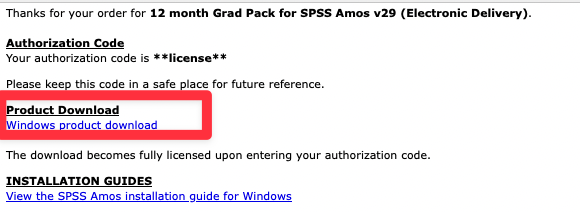
- Click "Windows product download" to commence the SPSS AMOS download.
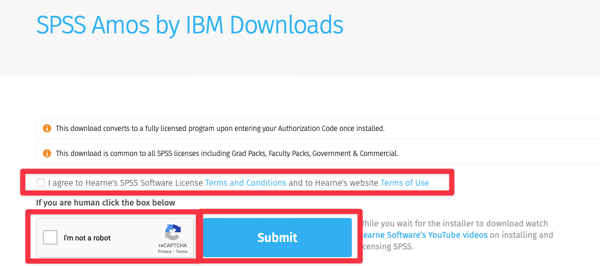
- Agree to the Terms and Conditions, tick "I’m not a robot" and click "Submit"
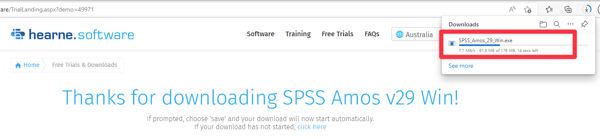
- The SPSS AMOS download will commence depending on which browser you are using. The example below is for Google Chrome. All downloads are usually saved to the Downloads folder (unless you’ve changed it).
NOTE: If you are asked to save the SPSS AMOS installer file, choose a location on your computer and click “Save”. Don’t forget which folder you’ve saved the installer file in, as you’ll need to browse to that location in the next step.
Installing SPSS AMOS
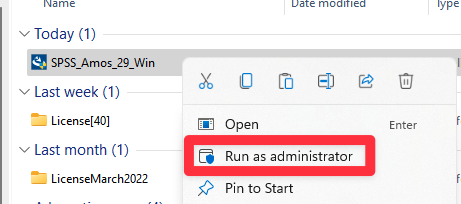
- Once downloaded, open the Downloads folder (or whichever folder you’ve saved the SPSS AMOS installer file in) and you’ll see the SPSS AMOS installer file. The file is called (for example) SPSS_AMOS_32_Win depending on which version you’ve purchased. Right click on this file and choose “Run as administrator” to commence the installation of SPSS AMOS.
- You may be prompted with the message “Do you want to allow this app to make changes to your device?” Click “Yes”
- Click “Next”
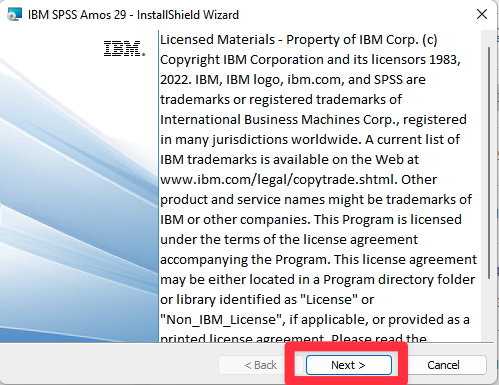
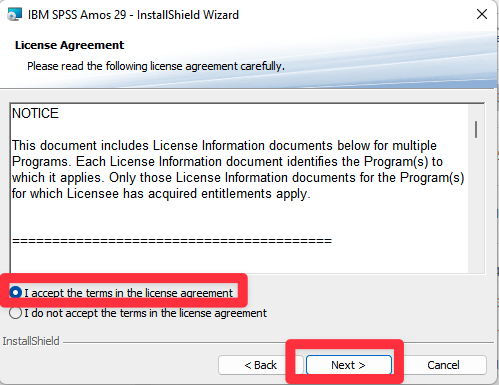
- Click “I accept the terms in the license agreement” and click “Next”
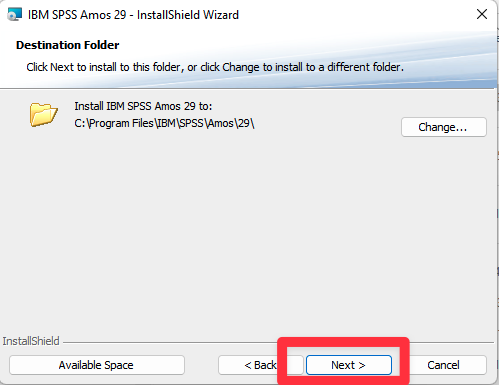
- Click “Next”
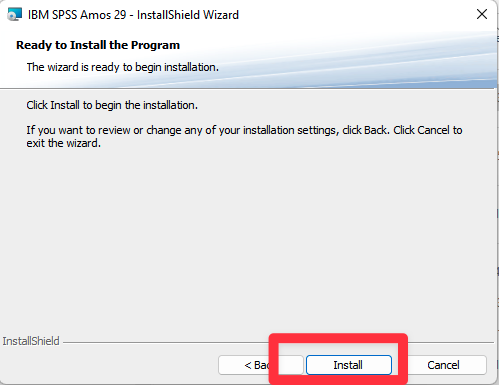
- Click “Install”
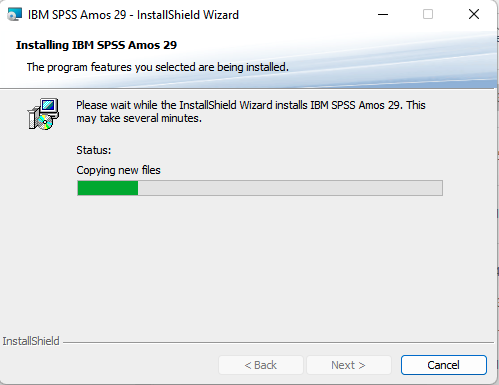
- The SPSS AMOS installation will progress and may take 5–10 minutes to install depending on how old your machine is.
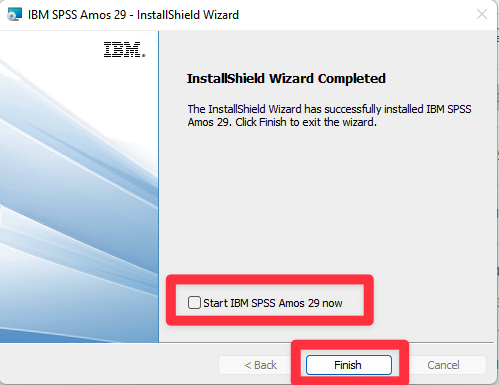
- Once the installation is finished, untick “Start IBM SPSS AMOS 32 now” and click “Finish”
Licensing SPSS AMOS
- Upon completion, open a File Explorer window and browse to:
- v32: This PC>Local Disk (C:)>Program Files>IBM>SPSS>Amos>30
- v32: This PC>Local Disk (C:)>Program Files>IBM>SPSS>Amos>30
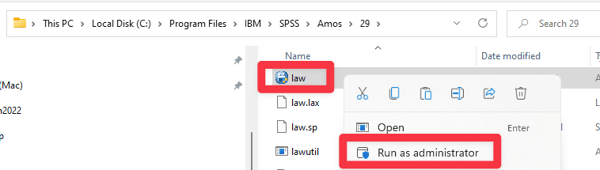
- Locate the file called “law”. Right click on this file and choose “Run as administrator” to commence the licensing process.
- You may be prompted with the message “Do you want to allow this app to make changes to your device?” Click “Yes”
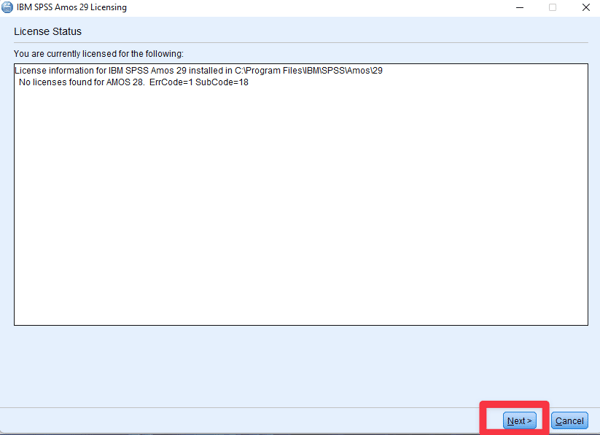
- It may come up with your existing license information. Sometimes, it may say “No Licenses Found”. Just press ‘Next’
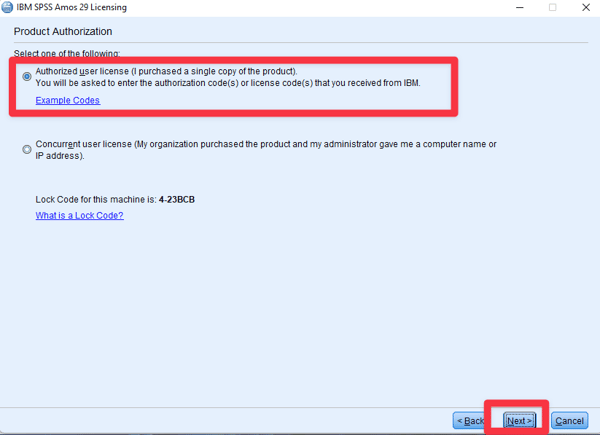
- Choose “Authorized User License” and press “Next”
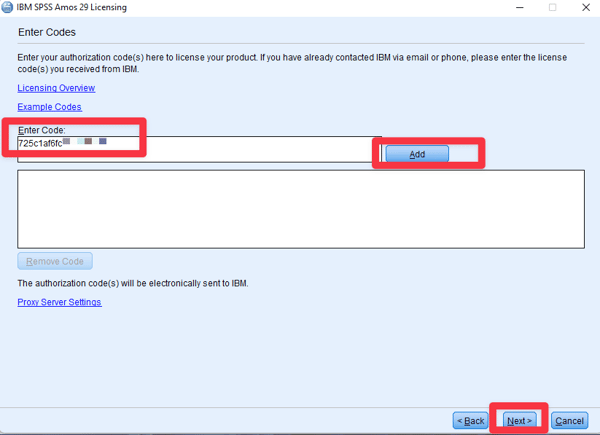
- Enter your authorization code, click “Add” and press ‘Next’. The authorization code is found in the email sent by Hearne Software and it’s best you copy and paste the code from this email to avoid any errors.
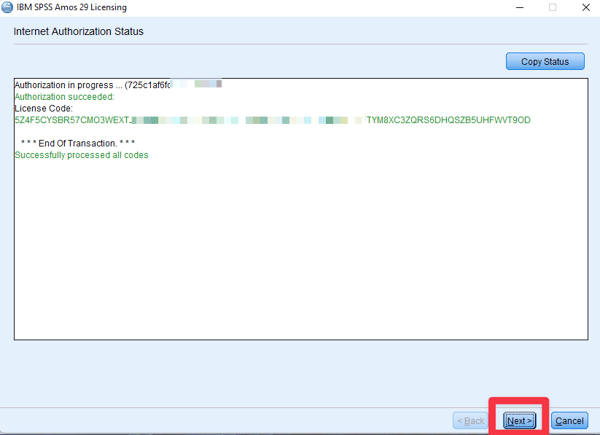
- Check that you get the message “Successfully processed all codes”, and then press ‘Next’
- Press ‘Finish’ to close the License Authorization Wizard.
Opening SPSS AMOS
- If you need to open SPSS AMOS, open a File Explorer window and browse to:
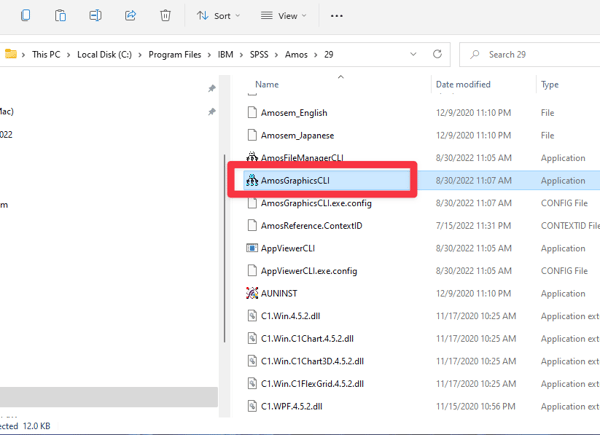
- v32 This PC>Local Disk (C:)>Program Files>IBM>SPSS>Amos>32
- Double click on “AmosGraphicsCLI” to open SPSS AMOS
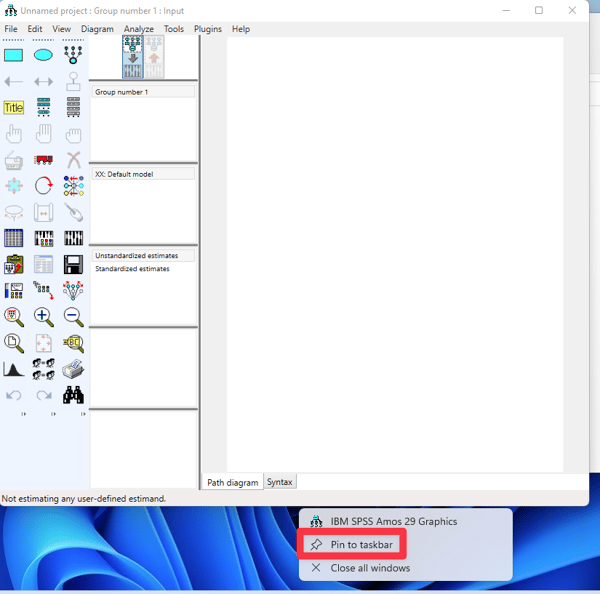
- To keep it in the Windows Taskbar, right click on the SPSS AMOS icon and click “Pin to taskbar”.

Free Shiping
From all orders over $100

Free Return Plolicy
Return money within 30 days

Secure Shopping
Youre in safe hands

More Than 1000 Products
We have everything you need
