

Analyse-it FAQs
How do I download latest version?
Have your product key ready and go to http://analyse-it.com/support/download to download the latest version.
Installing the software
Installing the software
- Check the computer meets the system requirements.
- Download the single installer (.EXE). It installs the version of Analyse-it that matches your 32-bit or 64-bit Microsoft Excel.
- Close Microsoft Excel.
These steps install the software just for your Windows account and need no administrator rights. To install for everyone who uses the computer, or to install on many computers, see Deploying the software.
- Double-click the installer you downloaded, and then click Next.The installer checks the system requirements, and installs Microsoft .NET 4.0 if it is missing.
- Read the End-User License Agreement, select I accept the terms of the License Agreement, and then click Next.If you have any questions about the agreement, click Cancel and contact support@analyse-it.com.
- Optional: To install somewhere other than the default folder, click Change, select the folder, and then click Next.
- Click Install.
- Click Start Analyse-it... to start Microsoft Excel now, or Finish to close the installer.
Analyse-it starts whenever you start Microsoft Excel, and offers you a free trial or the option to activate a license. Repeat on each computer where you want to use the software.
Transferring the software
First, deactivate or uninstall Analyse-it on the old computer. Then install it on the new computer and enter your product key. The administrator's guide has step-by-step instructions.
If you no longer have access to the old computer, contact support and we can reset your activation.
Uninstalling the software
Uninstalling the software
- You will need an administrator if the software is installed for everyone who uses the computer.
- Close Microsoft Excel.
Important: You do not need to uninstall the software to install an update. See Updating the software.
Uninstalling removes the program files and tries to deactivate the license of the Windows account you are using, so that license can be activated on another computer. The licenses of other accounts on the same computer are not deactivated. Each of those people must deactivate from their own account before their license can be moved.
If uninstalling cannot reach the license server, deactivate from within the software or at analyse-it.com/deactivate.
- Open Windows Settings, and then open Apps (or Apps & features).
- In the list of applications, select Analyse-it for Microsoft Excel (32-bit) or Analyse-it for Microsoft Excel (64-bit), whichever matches the version you installed.
- Click Uninstall.
Analyse-it no longer starts with Microsoft Excel, and you can activate the license on another computer.
Updating the software
Updating the software
- Check your maintenance is active. See Maintenance.
- If your computer is behind a firewall, open TCP port 443 (HTTPS) for communication to license-server.analyse-it.com.
Analyse-it checks for updates periodically and tells you when one is available. You can also check for one yourself.
When Analyse-it is installed for everyone who uses the computer, updating it replaces the copy everyone shares. Windows asks for administrator rights when the update starts. If you do not have them, ask your administrator to install the update.
Important: Analyse-it cannot update itself when it runs from a network location, or when your administrator has turned off updating. It shows a message and stops.
- Start Microsoft Excel to start Analyse-it.
- On the Analyse-it ribbon tab, click Analyse-it, and then click Check for Updates.
- Click Check Now.The software uses your internet connection to check for updates.
- If an update is available:
- Click Download and Install to install it now.
- Click Download to keep the installer and install it later.
Analyse-it asks you to close Microsoft Excel before it installs the update. Analyse-it starts again with Excel afterwards, and your license stays activated.
Lost your product key?
Sign in to your account here: https://analyse-it.com/sign-in
No password needed. Your account lists your licences and their product keys.
System requirements
Analyse-it requires:
- Windows 11 or 10, or Windows Server 2016 onwards. Windows 8 also works, though Microsoft no longer supports it.
- Excel 365, 2024, 2021, 2019 or 2016 (desktop-installed edition). Excel 2013 also works, though Microsoft no longer supports it. Both 32-bit and 64-bit versions of Excel are supported.
- An internet connection for licence activation and software update checks. If your computer is behind a firewall, TCP port 443 (HTTPS) must be open for communication with license-server.analyse-it.com. Versions before 6.20 use secure.analyse-it.com instead, so keep that open while anyone is still on an older version.
Version 6.20 and later does not require administrator rights. Earlier versions do.
Deactivating a licence
Deactivating a license
- If your computer is behind a firewall, open TCP port 443 (HTTPS) for communication to license-server.analyse-it.com.
A per-user license is linked to the computer and Windows account it was activated on until you deactivate it. Deactivate before you replace a computer or give it to someone else, otherwise the license is still counted as in use and you may be unable to activate elsewhere.
- Start Microsoft Excel to start Analyse-it.
- On the Analyse-it ribbon tab, click Analyse-it, click Deactivate, and then click Next.The software uses your internet connection to deactivate the license.
- If deactivation fails, deactivate manually:
- Click Deactivate.Your browser opens the manual deactivation page at analyse-it.com/deactivate. If the computer has no internet connection, open that page on any other computer or device.
- On the manual deactivation page, enter the Product Key and Site ID shown on the Deactivate window.Important: The Site ID identifies the computer and Windows account. It only shows on the Deactivate window in the software, so do not contact technical support asking for one. We cannot provide it.
- In the Deactivate window, click Next.
- Click Close.
You can no longer use the software on this computer, and you can activate the license on another computer.
Activating a licence
Activating a license
- Have your product key ready. It appears on your license and starts with P-.
- If your computer is behind a firewall, open TCP port 443 (HTTPS) for communication to license-server.analyse-it.com.
When you start Microsoft Excel, Analyse-it shows how many days of the free trial remain, or offers you a trial. Click Activate there. Use these steps if it does not appear.
Activate using the Windows account that will use the software. Each account holds its own license, so activating as an administrator does not activate it for anyone else.
- Start Microsoft Excel to start Analyse-it.
- On the Analyse-it ribbon tab, click Analyse-it, click Activate, and then click Next.The Activate window shows the license details.
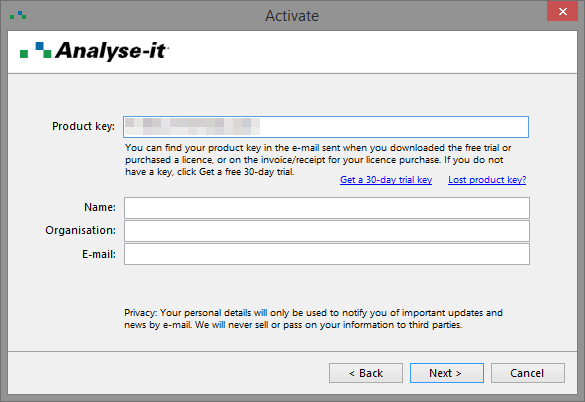
- Enter the Product Key and the Name, Organisation, and E-mail of the registered user of the software, and then click Next.The registered user receives e-mail about updates to Analyse-it. They can unsubscribe using the link in the e-mail.
- If activation fails, activate manually:
- Click Get Activation Code.Your browser opens the manual activation page at analyse-it.com/activate, with the details from the Activate window already filled in.
- If the computer has no internet connection, open that page on any other computer or device, and enter the Product Key, Site ID, Name, Organisation, and E-mail shown on the Activate window.Important: The Site ID identifies the computer and Windows account. It only shows on the Activate window in the software, so do not contact technical support asking for it. We cannot provide it.
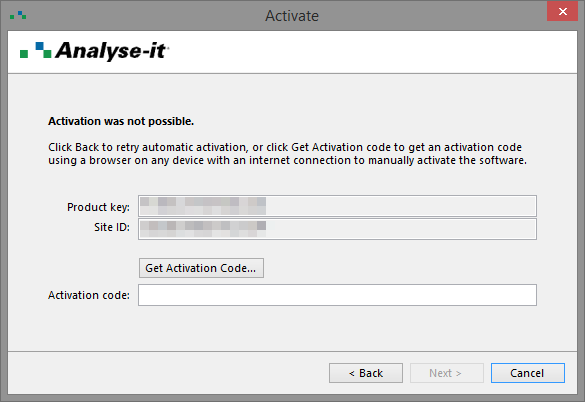
- Click Get Activation Code.The activation code shows in your browser window.
- In the Activate window, enter the Activation code, and then click Next.
- Click Close.
The software is licensed on this computer for this Windows account. Anyone else who uses the computer must activate from their own account.
What is Maintenance?
Maintenance
Maintenance gives you every software update released while it is active. If it expires the software keeps working, but only up to the last version released before the expiry date.
A perpetual license includes one year of maintenance when you buy it. Renewing is optional. The registered user is notified by e-mail 30 days before maintenance expires, and again on the day it expires.
An annual license includes maintenance for as long as the license lasts, and both end together. Renew the license to continue using the software.
